Portfolio → Tetherlock

Systems & tools · Security design studyTetherlock

Tetherlock

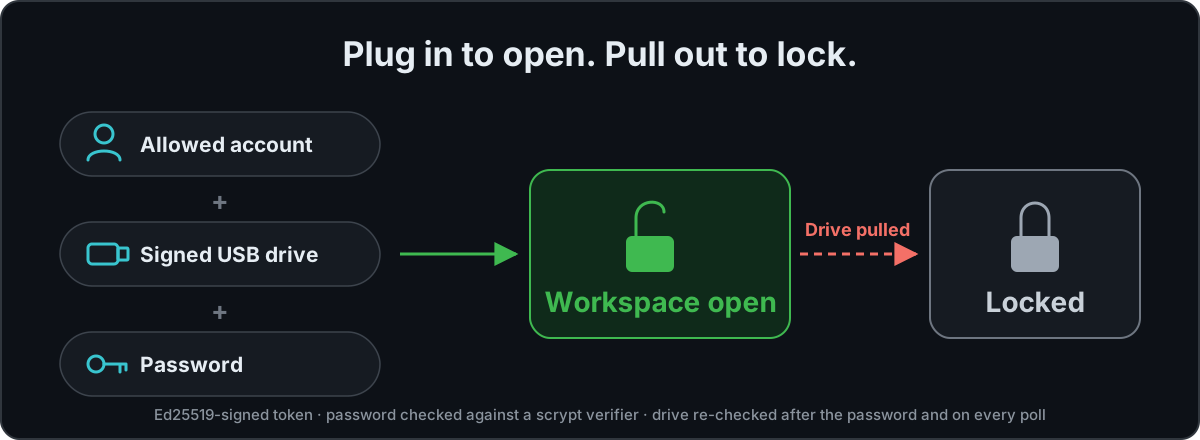
An access-control component for a local workspace. It lets the host application open the workspace only when three things are true at the same time: the person signed in is allowed in, a signed token is on the inserted drive, and the password matches. When a later check finds the drive gone, it tells the application to lock the workspace.

An allowed account, a signed USB drive and the password together open the workspace; pulling the drive locks it again.
Three conditions to open, one to close.

Swipe sideways to see the whole diagram.

Challenge

A local workspace needs both an opening rule and a rule for ending access when the required drive is no longer present.

My contribution

For this personal project, I set the access rules, key design, and lock lifecycle, reviewed designs, and tested through use. AI coding agents implemented the module.

A design write-up with real command and test output. The source is on GitHub; there is no recording or third-party audit. Where something is designed but unproven, this page says so.

Overview

Open when all three hold, close when one stops

The problem

A local workspace holds sensitive files. It should open only when three things are true at the same time: the person signed in is allowed in, the right drive is plugged in, and they know the password. It should close again as soon as the drive leaves.

  • My role: I defined the rules: three gates, lock on removal, no backdoor, one drive holding several areas with separate passwords, and delegated maintenance instead of sharing the admin password
  • AI coding agents wrote the code; I reviewed each design before it was built and tested it by using it
  • When the module was extracted to stand on its own, the lock monitor and the trust handling were rewritten by AI to the same rules

The rule, in one line

Account allowed in+Signed token on the drive+Password matches→Workspace opens
Drive removed→Workspace locks · the application is told to close it
01

Three checks, one order

The account must be allowed in, a signed token must be on the drive, and the password must match. If the account is not allowed in, the password prompt never appears.

02

Pull the drive, it locks

Every open workspace is re-checked on each cycle. A missing, replaced or no-longer-valid token locks that workspace, and only that one.

03

Help without the admin password

A separate maintenance token lists exactly what it allows. The session ends on its own after 30 minutes by default, or the moment the drive is removed.

How it works

One check cycle, and the life of one area

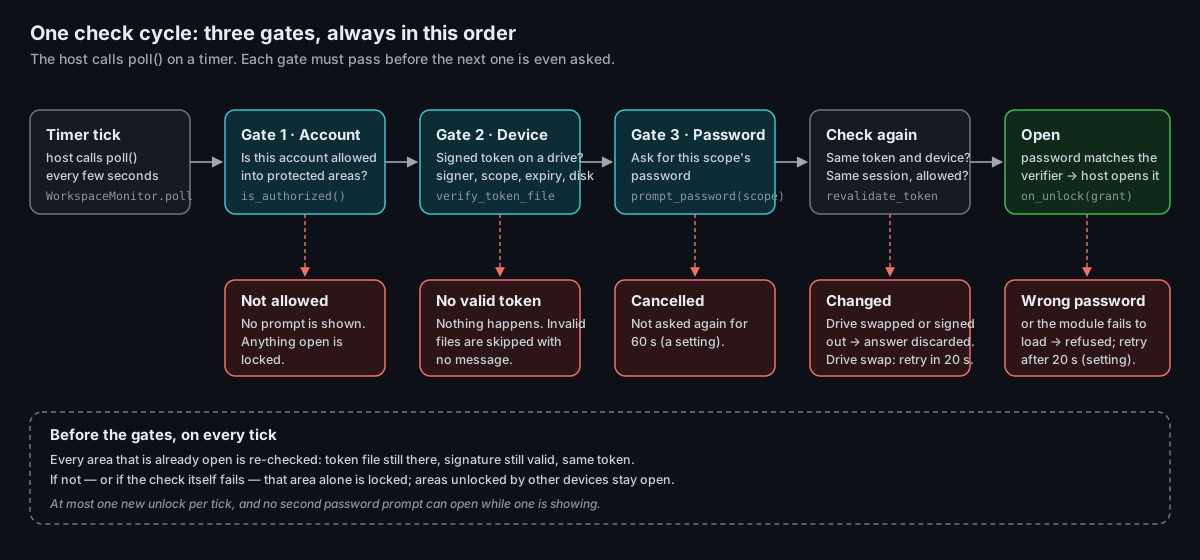
One check cycle: account, then a signed token on a drive, then the password, then the token is checked again before anything opens. Each gate has its own refusal path.
One check cycle, gate by gate. Each gate must pass before the next one is even asked.

Swipe sideways to see the whole diagram.

  1. The account must be allowed in. The host application answers one question: may this account open protected areas? It is asked first, on every cycle. “No” means no prompt, and anything open is locked.
  2. A signed token must be on the drive. The signature, the trusted key and the expiry are checked. When the token is bound to a drive, a copy on another drive is refused; the check compares the drive's volume serial number, so it does not stop an exact clone.
  3. The password must match. It is checked against a stored verifier; the token never contains the password.
  4. The drive is checked again, after the password. The token is re-read and must be the same one found before the prompt, so a drive pulled or swapped while someone types opens nothing.
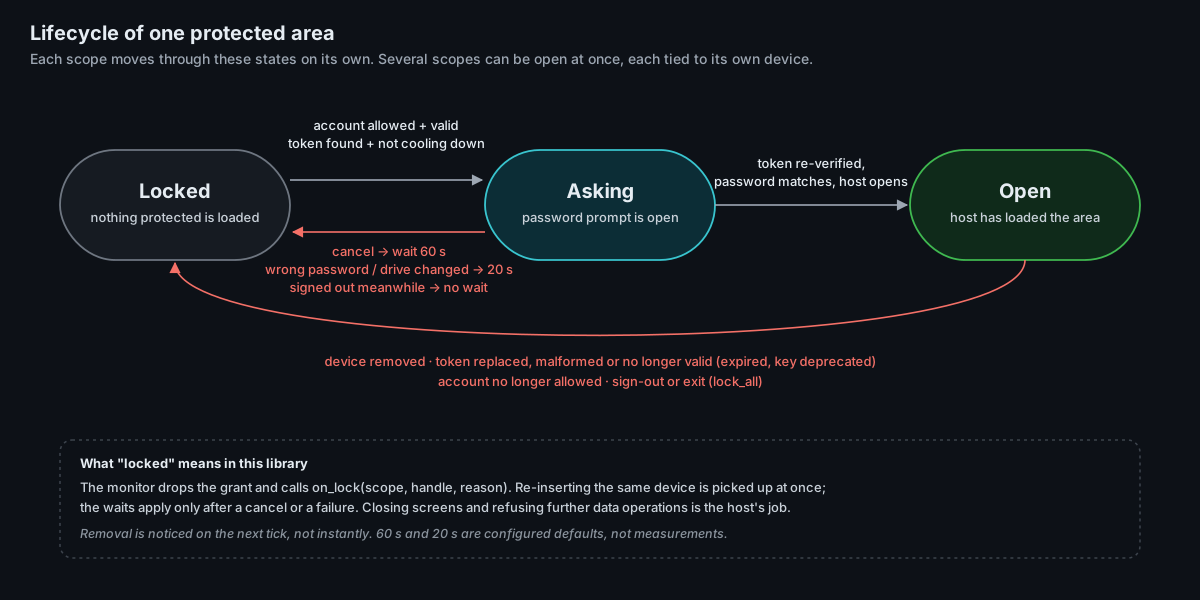
Lifecycle of one protected area: Locked, Asking, Open, and every way back to Locked.
The life of one protected area. Several areas can be open at once, each tied to its own drive.

Swipe sideways to see the whole diagram.

Staying open, and closing

An open area is re-checked on every cycle. If the drive is removed, the token is replaced, expires or was signed by a key that has been phased out, or the account is no longer allowed in, that area locks and the application is told to close it. Areas opened by other drives stay open. Closing screens and refusing data operations is the application's job; Tetherlock tells it when.

Delegated maintenance

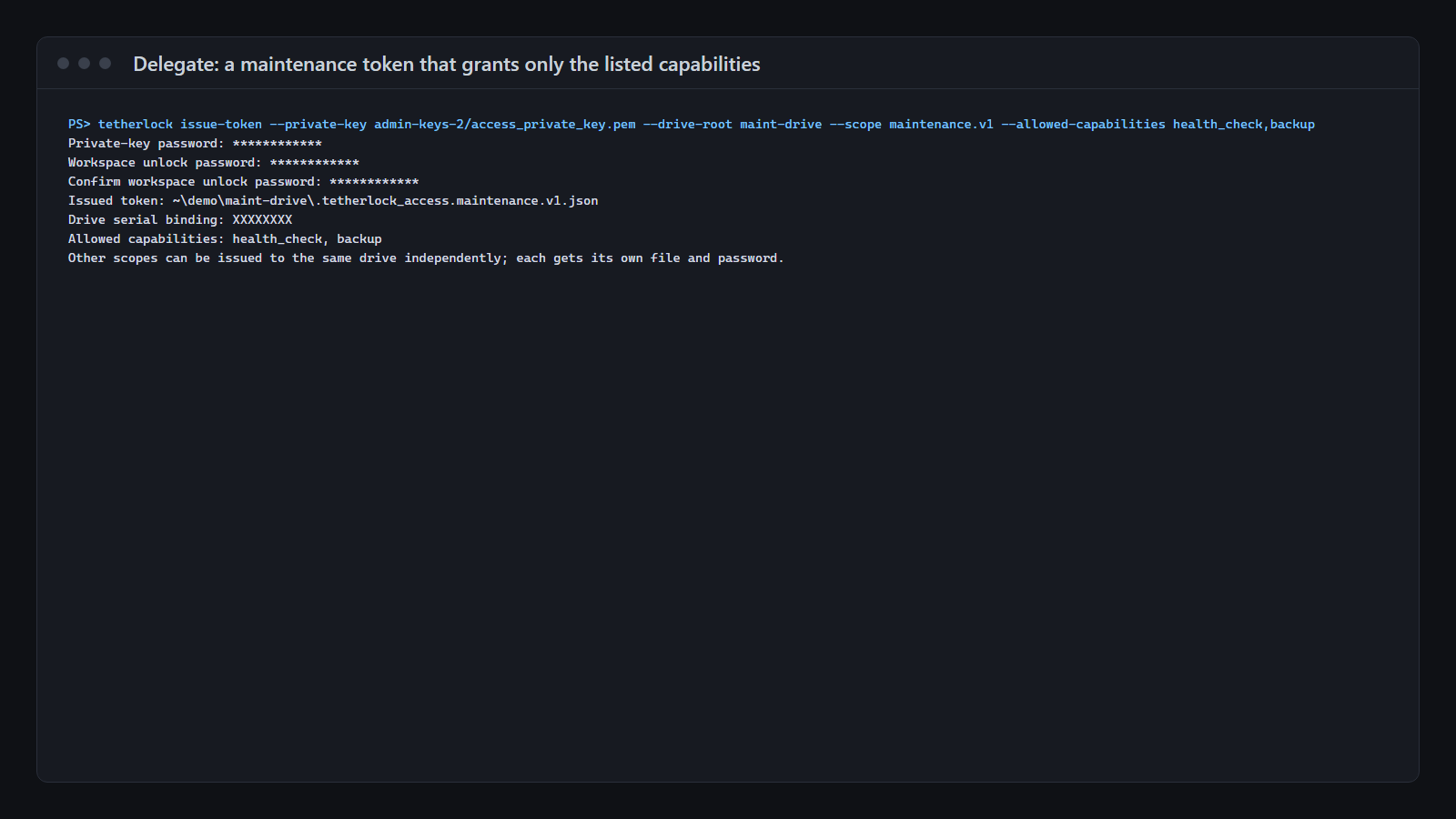
A separate token lists the capabilities it allows, and only ones the application recognises are granted. The session lives in memory, lasts 30 minutes by default, and every use re-checks the clock and the token. Removing the drive ends it before the next action.

In action

Seven screens from the standalone version

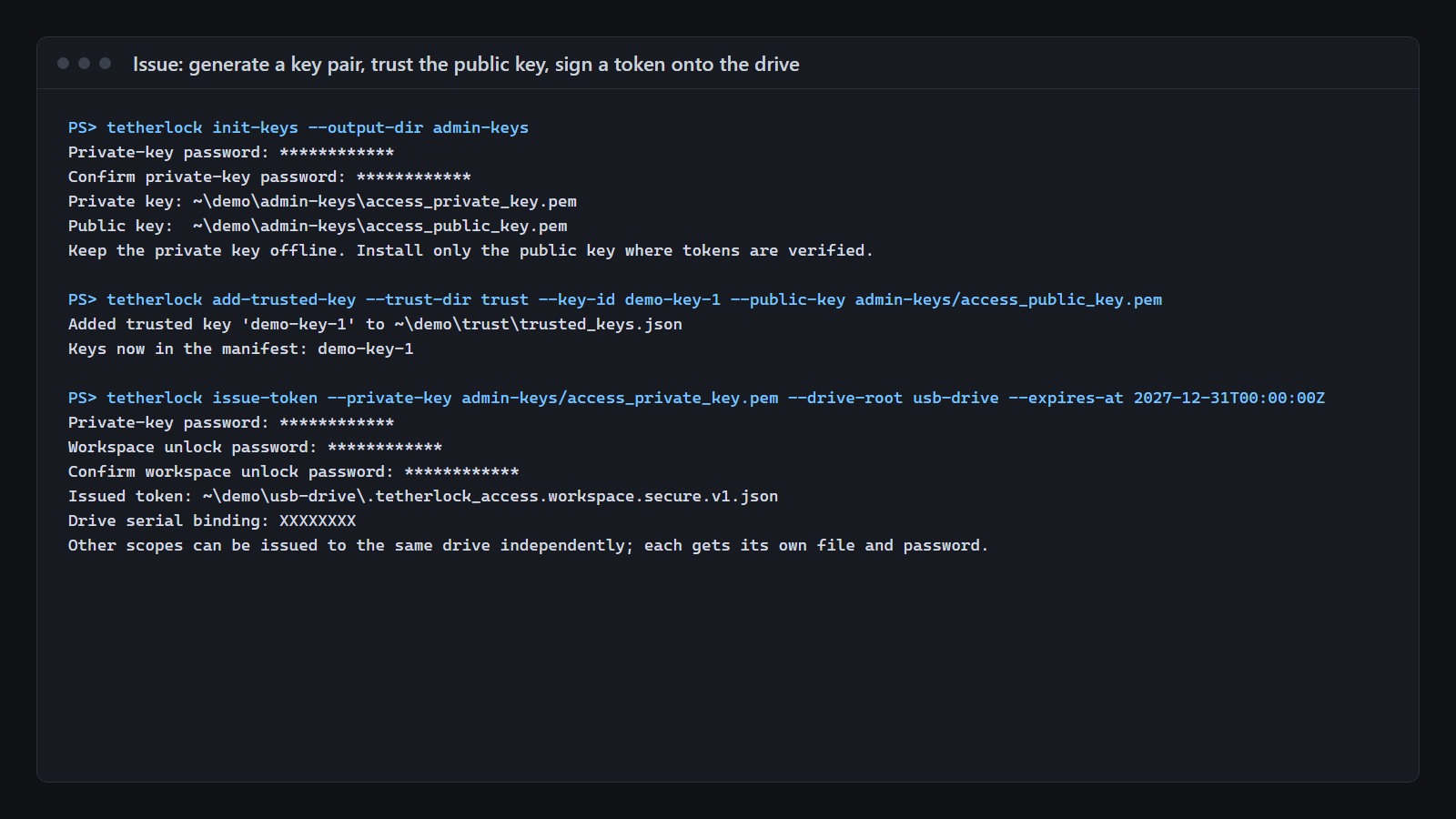
Terminal: tetherlock init-keys, add-trusted-key and issue-token succeed.
01Issue: create a key pair, trust the public key, sign a token onto the drive.
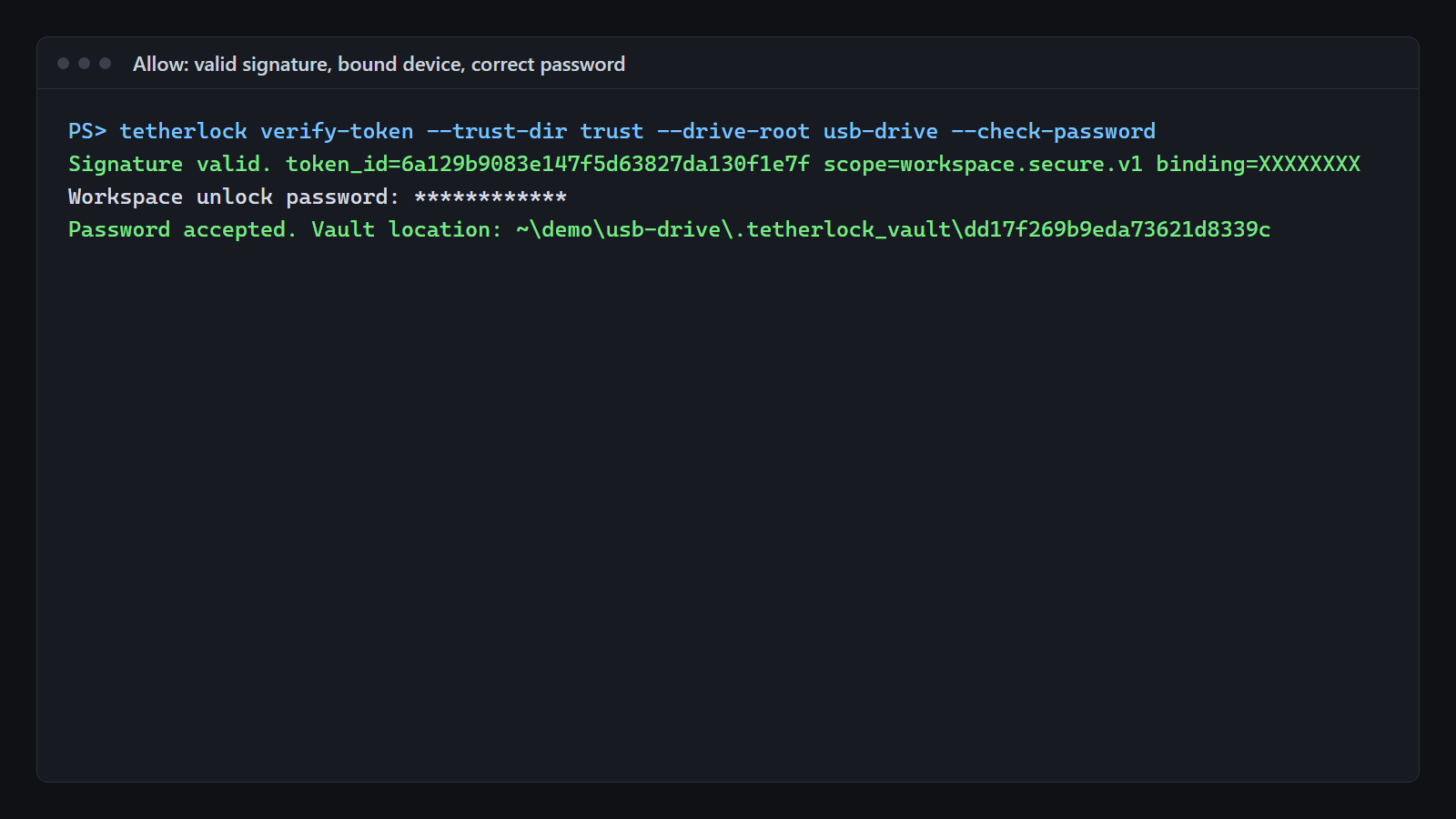
Terminal: verify-token reports that the signature is valid and the password is accepted.
02Allow: valid signature, matching drive, correct password.
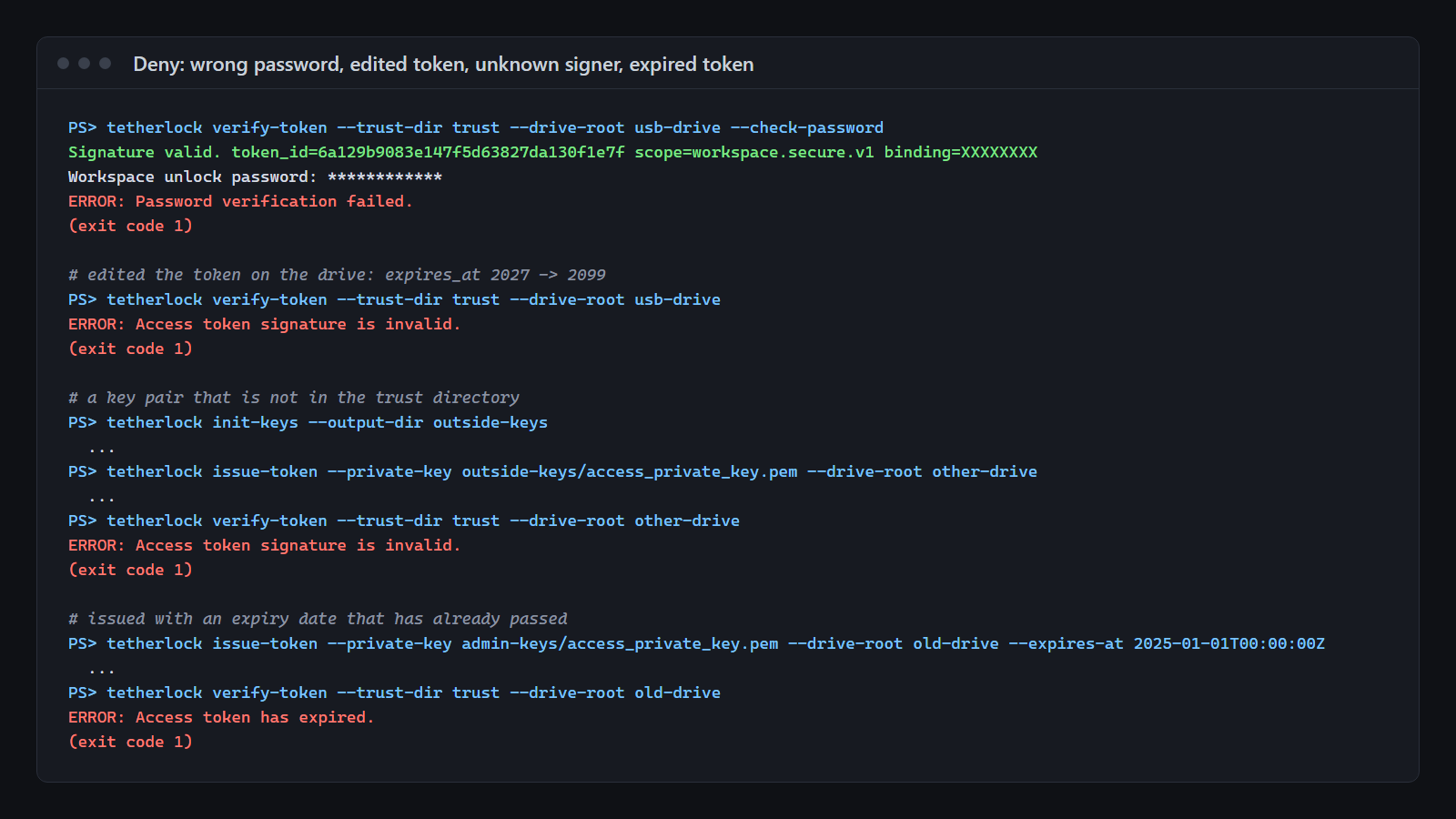
Terminal: four verify-token runs, each ending in an error.
03Deny: wrong password, edited token, unknown signer, expired token. Each one is refused.
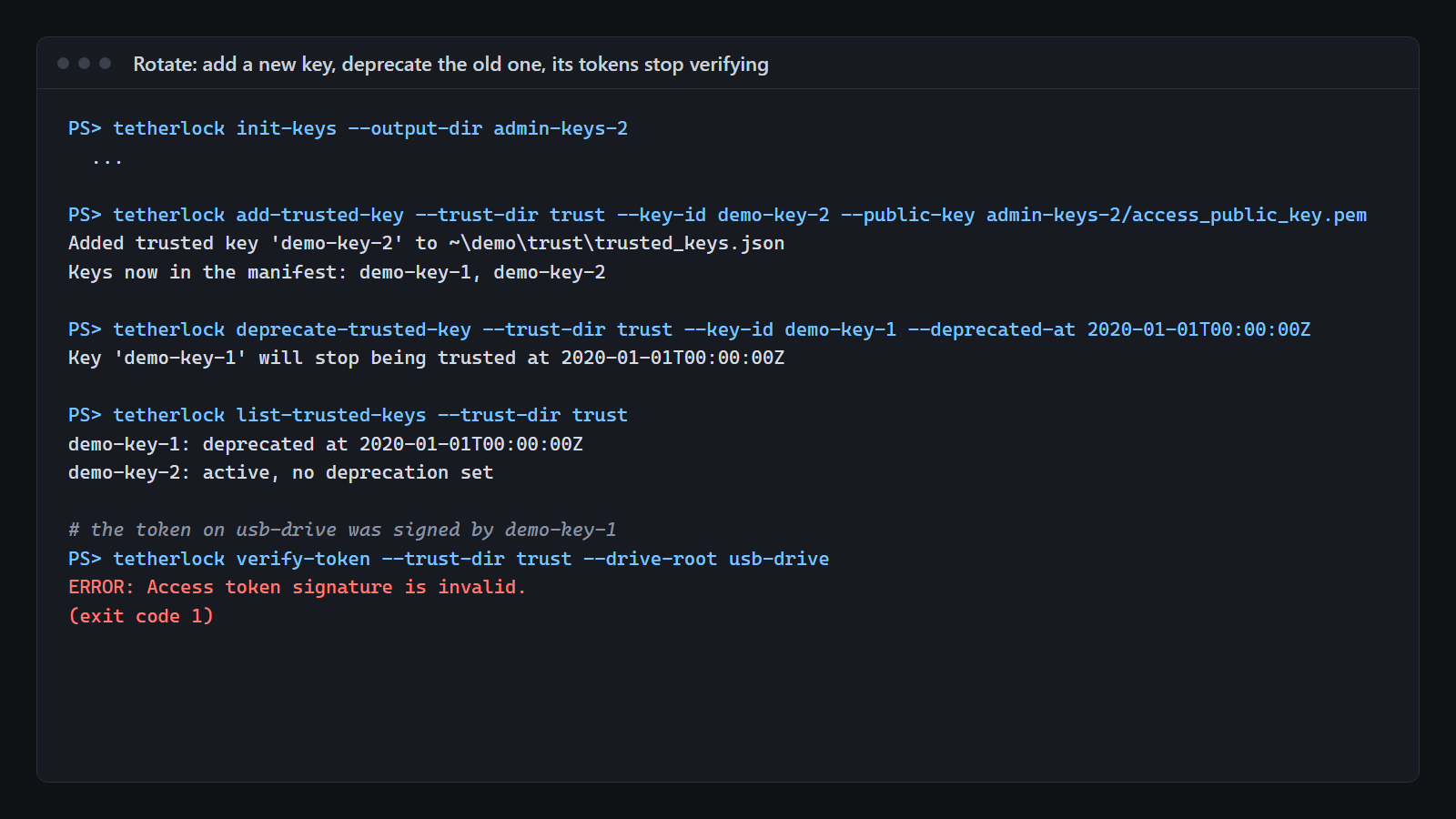
Terminal: after demo-key-1 is phased out, its token no longer verifies.
04Rotate: add a new key, phase out the old one; its tokens stop working.
Terminal: issue-token with scope maintenance.v1 and two capabilities.
05Delegate: a maintenance token that allows only what it lists.
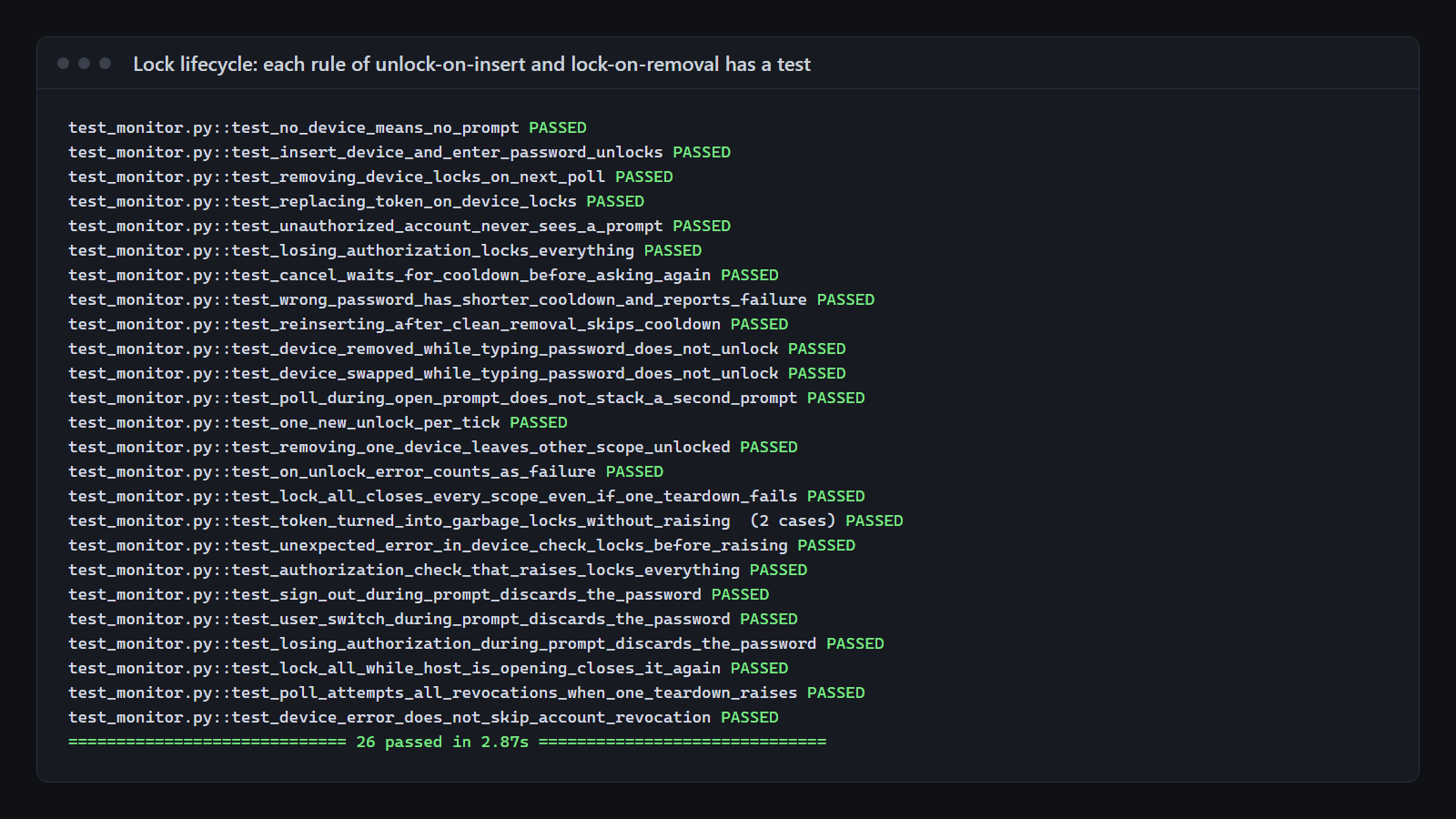
Test run: 26 lock-lifecycle test cases passed.
06Every rule of unlock and lock has a test.
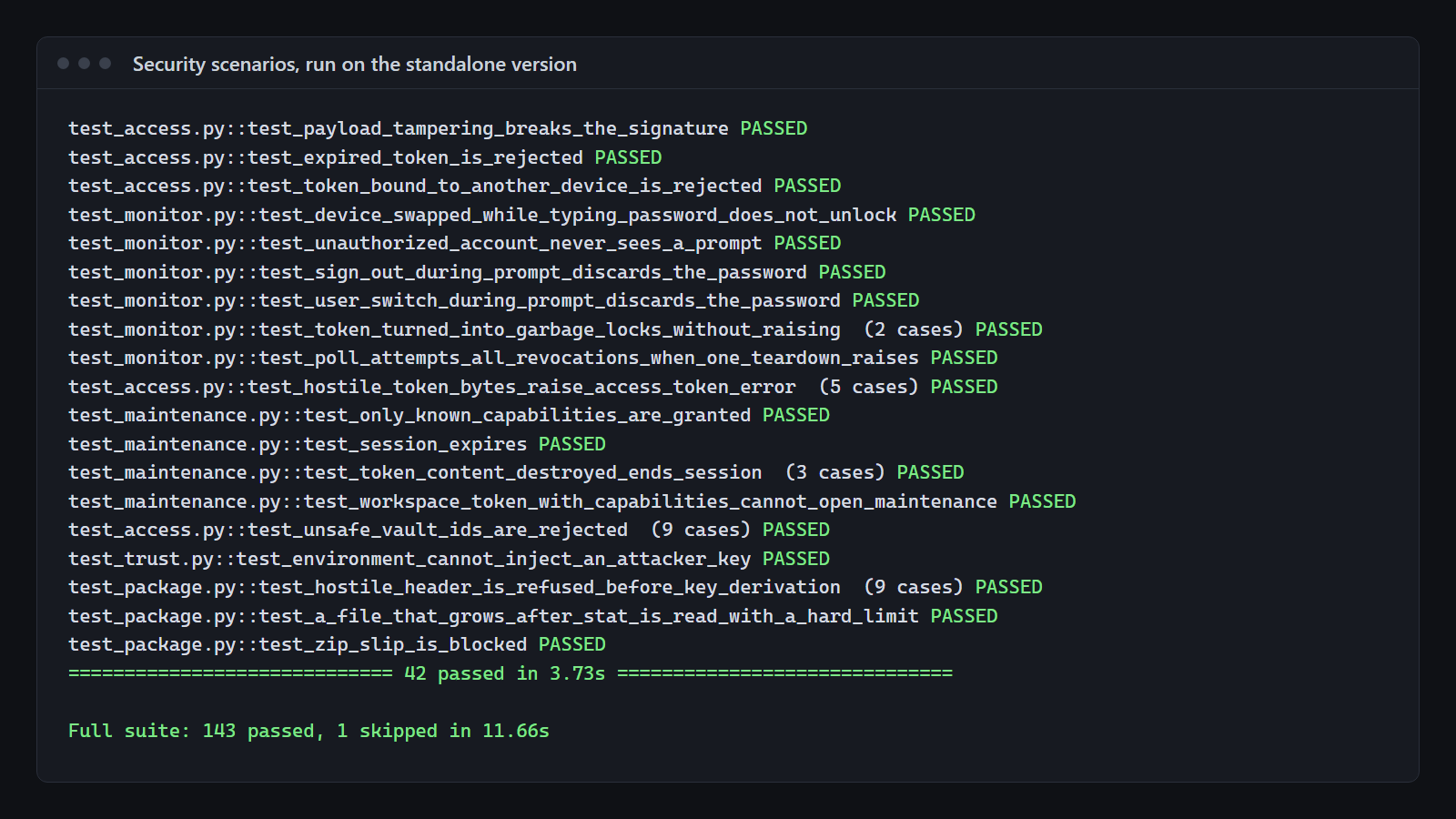
Test run: 42 scenario test cases passed; full suite 143 passed, 1 skipped.
07Security scenarios, run on the standalone version.
1 / 7

Real command and test output with freshly generated demo keys, captured 2026-09-22 and 2026-09-26. Paths are shortened and the drive serial number is hidden. Tap a screen to open it full size.

Design decisions

Three calls, and what was rejected

01

Check the drive again after the password

Typing a password takes seconds, and in that time the drive can be pulled or swapped for another at the same drive letter. So the token is re-read and re-verified after the password and before anything opens.

Rejected: checking the drive once, before the prompt, and trusting that result afterwards.

02

No master key

There is no recovery key and no bypass. The only code that grants access runs after the password check. The cost is accepted: lose every signing key, and trust has to be set up again from scratch.

Rejected: an emergency override “so it can always be recovered”. A backdoor becomes the easiest way in.

03

When in doubt, lock

If a check fails with an unexpected error, or a token turns unreadable while the area is open, the area is locked first and the error is reported after. The owner may occasionally have to unlock again.

The other way round, staying open until someone looks, leaves the door open for as long as nobody notices.

Scope & limits

What it does, and what it leaves to others

Tetherlock decides whether a protected workspace may open, and closes it again. It does not encrypt the files inside: the workspace password is checked, but it is not an encryption key. Keeping the drive's contents unreadable is the job of full-disk encryption. It also cannot tell a drive from an exact bit-for-bit copy of it.

Built

  • Signed tokens, password verifier, drive binding
  • Trust store with key rotation
  • Unlock and lock monitor
  • Delegated maintenance
  • Module loading after unlock
  • Encrypted hand-over packages and an admin command-line tool

Verified · 2026-09-26

  • 143 tests passed, 1 skipped, on Python 3.10 and 3.14
  • A fresh install and the README quick start ran end to end
  • Removing each protection from the monitor in turn made a test fail

Not yet

  • Encryption of workspace files
  • A revocation list
  • A third-party security audit
  • A user interface; the application supplies its own screens
  • Real-world timing of lock after removal: not measured

If this is the kind of thinking you want on your team, the same reasoning shows up in AI Control Center, where an approval only counts against the exact version of the work it was given for.
Opens in a new tab